> ## Documentation Index
> Fetch the complete documentation index at: https://docs.baato.io/llms.txt
> Use this file to discover all available pages before exploring further.
# Drop a pin
> Let users drop a pin on the map and reverse geocode it to an address.
This example demonstrates how you can use the [baato-java-client](/libraries/java) library to allow users drop a pin into any location within a given MapView and generate an address corresponding to the location.
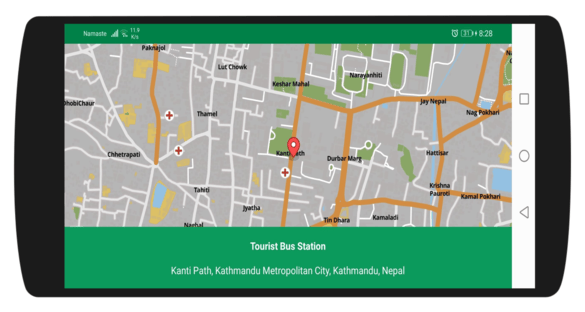 Before you begin, please make sure you have the [Baato Java Library](/libraries/java) installed in your app.
Specify the required dependency configuration in your app's build.gradle file.
```groovy theme={null}
//mapbox sdk
implementation('com.mapbox.mapboxsdk:mapbox-android-sdk:6.5.0') {
exclude group: 'group_name', module: 'module_name'
}
implementation 'com.mapbox.mapboxsdk:mapbox-android-plugin-locationlayer:0.8.1'
```
If you are using MapBox as your map service, the Baato client currently supports only the versions pinned above.
```xml theme={null}
```
```java theme={null}
public class LocationPickerActivity extends AppCompatActivity {
private MapView mapView;
private MapboxMap mapboxMap;
private TextView bottomInfoLayout;
private Icon selectedMarkerIcon;
private MarkerOptions marker;
@Override
protected void onCreate(Bundle savedInstanceState) {
super.onCreate(savedInstanceState);
setContentView(R.layout.activity_location_picker);
mapView = findViewById(R.id.mapView);
bottomInfoLayout = findViewById(R.id.bottomInfoLayout);
Mapbox.getInstance(this, getString(R.string.mapbox_token));
mapView.onCreate(savedInstanceState);
mapView.getMapAsync(mapboxMap ->
{
//remove mapbox attribute
mapboxMap.getUiSettings().setAttributionEnabled(false);
mapboxMap.getUiSettings().setLogoEnabled(false);
//add your map style url here
mapboxMap.setStyleUrl("https://api.baato.io/api/v1/styles/retro?key=" + getString(R.string.baato_access_token),
style -> {
this.mapboxMap = mapboxMap;
mapView.setVisibility(View.VISIBLE);
initClickedMarker(mapboxMap); //to initialize a marker icon for selected location
});
});
}
```
```java theme={null}
private void initClickedMarker(MapboxMap mapboxMap) {
Drawable drawabled = ResourcesCompat.getDrawable(getResources(), R.drawable.mapbox_marker_icon_default, null);
Bitmap dBitmap = BitmapUtils.getBitmapFromDrawable(drawabled);
assert dBitmap != null;
IconFactory mIconFactory = IconFactory.getInstance(this);
selectedMarkerIcon = mIconFactory.fromBitmap(dBitmap);
// Handle tap events on the map
mapboxMap.addOnMapClickListener(point ->
updateMarkerPosition(point));
}
// Change the position of the marker
private void updateMarkerPosition(LatLng point) {
if (marker == null) {
marker = new MarkerOptions().icon(selectedMarkerIcon).position(point);
mapboxMap.addMarker(marker);
} else if (!mapboxMap.getMarkers().isEmpty()) {
Marker marker = mapboxMap.getMarkers().get(0);
marker.setPosition(point);
mapboxMap.updateMarker(marker);
}
moveCameraTo(point);
getAddressFromLibrary(point); // To make a reverse geocoding search using the tapped coordinates
}
private void moveCameraTo(LatLng point) {
double zoom = mapboxMap.getCameraPosition().zoom;
if (zoom < 10)
zoom = 13;
else if (zoom < 13)
zoom = 15;
else if (zoom < 15)
zoom = zoom + 1;
else if (zoom < 18)
zoom = zoom + 1;
mapboxMap.animateCamera(CameraUpdateFactory.newLatLngZoom(point, zoom), 300);
}
```
Follow [java-library](/libraries/java) to add the required dependency and perform reverse search using baato reverse search library wherever the user taps on the map.
```java theme={null}
private void getAddressFromLibrary(LatLng point) {
new BaatoReverse(this)
.setLatLon(new LatLon(point.getLatitude(), point.getLongitude()))
.setAccessToken(getString(R.string.baato_access_token))
.setRadius(2)
.withListener(new BaatoReverse.BaatoReverseRequestListener() {
@Override
public void onSuccess(PlaceAPIResponse places) {
// If the geocoder returns a result, we take the first in the list and show the address with the place name.
if (!places.getData().isEmpty()) {
Place place = places.getData().get(0);
bottomInfoLayout.setText(Html.fromHtml("
Before you begin, please make sure you have the [Baato Java Library](/libraries/java) installed in your app.
Specify the required dependency configuration in your app's build.gradle file.
```groovy theme={null}
//mapbox sdk
implementation('com.mapbox.mapboxsdk:mapbox-android-sdk:6.5.0') {
exclude group: 'group_name', module: 'module_name'
}
implementation 'com.mapbox.mapboxsdk:mapbox-android-plugin-locationlayer:0.8.1'
```
If you are using MapBox as your map service, the Baato client currently supports only the versions pinned above.
```xml theme={null}
```
```java theme={null}
public class LocationPickerActivity extends AppCompatActivity {
private MapView mapView;
private MapboxMap mapboxMap;
private TextView bottomInfoLayout;
private Icon selectedMarkerIcon;
private MarkerOptions marker;
@Override
protected void onCreate(Bundle savedInstanceState) {
super.onCreate(savedInstanceState);
setContentView(R.layout.activity_location_picker);
mapView = findViewById(R.id.mapView);
bottomInfoLayout = findViewById(R.id.bottomInfoLayout);
Mapbox.getInstance(this, getString(R.string.mapbox_token));
mapView.onCreate(savedInstanceState);
mapView.getMapAsync(mapboxMap ->
{
//remove mapbox attribute
mapboxMap.getUiSettings().setAttributionEnabled(false);
mapboxMap.getUiSettings().setLogoEnabled(false);
//add your map style url here
mapboxMap.setStyleUrl("https://api.baato.io/api/v1/styles/retro?key=" + getString(R.string.baato_access_token),
style -> {
this.mapboxMap = mapboxMap;
mapView.setVisibility(View.VISIBLE);
initClickedMarker(mapboxMap); //to initialize a marker icon for selected location
});
});
}
```
```java theme={null}
private void initClickedMarker(MapboxMap mapboxMap) {
Drawable drawabled = ResourcesCompat.getDrawable(getResources(), R.drawable.mapbox_marker_icon_default, null);
Bitmap dBitmap = BitmapUtils.getBitmapFromDrawable(drawabled);
assert dBitmap != null;
IconFactory mIconFactory = IconFactory.getInstance(this);
selectedMarkerIcon = mIconFactory.fromBitmap(dBitmap);
// Handle tap events on the map
mapboxMap.addOnMapClickListener(point ->
updateMarkerPosition(point));
}
// Change the position of the marker
private void updateMarkerPosition(LatLng point) {
if (marker == null) {
marker = new MarkerOptions().icon(selectedMarkerIcon).position(point);
mapboxMap.addMarker(marker);
} else if (!mapboxMap.getMarkers().isEmpty()) {
Marker marker = mapboxMap.getMarkers().get(0);
marker.setPosition(point);
mapboxMap.updateMarker(marker);
}
moveCameraTo(point);
getAddressFromLibrary(point); // To make a reverse geocoding search using the tapped coordinates
}
private void moveCameraTo(LatLng point) {
double zoom = mapboxMap.getCameraPosition().zoom;
if (zoom < 10)
zoom = 13;
else if (zoom < 13)
zoom = 15;
else if (zoom < 15)
zoom = zoom + 1;
else if (zoom < 18)
zoom = zoom + 1;
mapboxMap.animateCamera(CameraUpdateFactory.newLatLngZoom(point, zoom), 300);
}
```
Follow [java-library](/libraries/java) to add the required dependency and perform reverse search using baato reverse search library wherever the user taps on the map.
```java theme={null}
private void getAddressFromLibrary(LatLng point) {
new BaatoReverse(this)
.setLatLon(new LatLon(point.getLatitude(), point.getLongitude()))
.setAccessToken(getString(R.string.baato_access_token))
.setRadius(2)
.withListener(new BaatoReverse.BaatoReverseRequestListener() {
@Override
public void onSuccess(PlaceAPIResponse places) {
// If the geocoder returns a result, we take the first in the list and show the address with the place name.
if (!places.getData().isEmpty()) {
Place place = places.getData().get(0);
bottomInfoLayout.setText(Html.fromHtml("" + place.getName() + "
" + place.getAddress()));
} else {
bottomInfoLayout.setText("No address found!");
}
}
@Override
public void onFailed(Throwable error) {
bottomInfoLayout.setText(error.getMessage());
}
})
.doRequest();
}
```